Same here WAF closing in on zero
I’m moving away from Deconz/Phoscon and the associated products because of this (and especially because the problem is being ignored).
Original HUE and the “Emulated HUE” integration in HomeAssistant work just fine. It’s some work to migrate, but I need the functionality because of WAF.
I was planning to do to the same, even if is annoying to migrate everything. But the lack of support is annoying as well
I found a solution. I changed the deCONZ web and WebSocket ports to 8080 and assigned it a new free IP, 192.168.1.239.
Then I set up an nginx reverse proxy with a self-signed SSL certificate on the old deCONZ IP, 192.168.1.241, and forwarded ports 80 and 443 to the new deCONZ IP.
It seems that Amazon made a change on their side that now requires a secure SSL/TLS connection for proper Hue/Emulated Hue discovery and fast response.
This way, all existing devices keep working without needing to re-pair them, and everything responds instantly again.
Also, because of the port changes in deCONZ, Alexa discovery does not create duplicate devices.
A native solution in deCONZ could be to use its own proper SSL/TLS connection so that Alexa can access it directly over 443, removing the need for a reverse proxy.
Here’s my nginx.conf for this setup:
server {
    listen 80;
    server_name _;

    location / {
        proxy_pass http://192.168.1.239:8080;
        proxy_http_version 1.1;
        proxy_set_header Upgrade $http_upgrade;
        proxy_set_header Connection "upgrade";
        proxy_set_header Host $host;
        proxy_set_header X-Real-IP $remote_addr;
        proxy_set_header X-Forwarded-For $proxy_add_x_forwarded_for;
    }
}

server {
    listen 443 ssl;
    server_name _;

    ssl_certificate /etc/nginx/certs/cert-deconz-nginx.pem;
    ssl_certificate_key /etc/nginx/certs/key-deconz-nginx.pem;

    location / {
        proxy_pass http://192.168.1.239:8080;
        proxy_http_version 1.1;
        proxy_set_header Upgrade $http_upgrade;
        proxy_set_header Connection "upgrade";
        proxy_set_header Host $host;
        proxy_set_header X-Real-IP $remote_addr;
        proxy_set_header X-Forwarded-For $proxy_add_x_forwarded_for;
    }
}
Hi Marcus,
thanks a lot for sharing your solution and configuration! It’s really helpful and I’m about to test it right away.
One question though: why not run the nginx reverse proxy directly on the same deCONZ host instead of assigning a new IP? Wouldn’t that simplify things by avoiding the hassle of managing multiple IP addresses? From my understanding, you can just move deCONZ to port 8080 locally and let nginx listen on ports 80 and 443 on that same host.
Thanks again for your idea – looking forward to trying it out!
Best regards
Oh yes, you can indeed do this. I am using Docker, so I split them into two containers.
Sorry for the confusion, I just wasn’t thinking about the usual hosting. After all the tinkering, I was just happy and wanted to quickly share it with everyone
Great work! Thank you. Will test the solution in the coming days.
I’m running Deconz on a Raspberry Pi. I’ve now installed nginx as a reverse proxy on the Raspberry Pi, using only port 443 and a self-signed certificate, excluding port 80. Port 80 is still being used by Deconz. I previously changed Phoscon’s WebSocket port 443 to 8443.
Alexa is working again.
Below are instructions for installation. The IP address 192.168.1.100 and the hostname raspberrypi must be adjusted to your system.
- Change WebSocket port for deconz
# Stop deconz
sudo sytemctl stop deconz

# Edit deconz configuration
sudo systemctl edit deconz
Change the ws-port in the file from 443 to 8443:
ExecStart=/usr/bin/deCONZ -platform minimal --http-port=80 --ws-port=8443
Save the configuration and start deconz.
# Start deconz
sudo systemctl start deconz
Deconz should now run on port 80 and 8443. You can test it with netstat.
sudo netstat -tulpn
- Install nginx and stop it immediately
# Update System and install nginx
sudo apt update
sudo apt install nginx -y

# stop nginx and disable autostart
sudo systemctl stop nginx
sudo systemctl disable nginx
- Remove standard configuration
sudo rm /etc/nginx/sites-enabled/default
- Create SSL Certificate
# Generate private key
sudo openssl genrsa -out /etc/ssl/private/nginx-selfsigned.key 2048

# Create certificate (10 years)
sudo openssl req -new -x509 -days 3650 \
  -key /etc/ssl/private/nginx-selfsigned.key \
  -out /etc/ssl/certs/nginx-selfsigned.crt \
  -subj "/C=DE/ST=Home/L=Internal/O=HomeLab/CN=raspberrypi.local" \
  -addext "subjectAltName=IP:192.168.1.100,DNS:raspberrypi.local,DNS:localhost"
- Create nginx reverse proxy configuration file
sudo nano /etc/nginx/sites-available/reverse-proxy
Content:
server {
    listen 443 ssl;
    server_name raspberrypi.local 192.168.1.100 localhost;

    # SSL certificate
    ssl_certificate /etc/ssl/certs/nginx-selfsigned.crt;
    ssl_certificate_key /etc/ssl/private/nginx-selfsigned.key;

    # SSL configuration
    ssl_protocols TLSv1.2 TLSv1.3;
    ssl_ciphers ECDHE-RSA-AES128-GCM-SHA256:ECDHE-RSA-AES256-GCM-SHA384;
    ssl_prefer_server_ciphers on;

    # Reverse proxy to port 80
    location / {
        proxy_pass http://localhost:80;
        proxy_set_header Host $host;
        proxy_set_header X-Real-IP $remote_addr;
        proxy_set_header X-Forwarded-For $proxy_add_x_forwarded_for;
        proxy_set_header X-Forwarded-Proto $scheme;

        # Timeout settings
        proxy_connect_timeout 30s;
        proxy_read_timeout 60s;
        proxy_send_timeout 60s;
    }
}
- Activate configuration
# Activate configruation
sudo ln -s /etc/nginx/sites-available/reverse-proxy /etc/nginx/sites-enabled/

# Test syntax
sudo nginx -t
Expected result:
nginx: configuration file /etc/nginx/nginx.conf test is successful
- Start nginx
# start nginx
sudo systemctl start nginx

# Activate autostart
sudo systemctl enable nginx
- Check installation
# Check status
sudo systemctl status nginx

# Check if nginx is running on port 443
sudo netstat -tulpn | grep :443

# Check if only phoscon is running on port 80
sudo netstat -tulpn | grep :80
Thank you very much @Franky. It was really annoying, that deconz doesn’t react on that problem (not a single reaction on issue at GitHub from them).
I also had to restart my pi once and than it worked like a charm.
Maybe you would specify the part
to
@Franky
I’m not able to add to the issue directly, but please use:
sudo systemctl edit deconz
instead of:
sudo nano /lib/systemd/system/deconz.service
This way, your changes won’t be overwritten by apt upgrade.
@Haerteleric
Maybe you should specify this a bit more. With your suggestion it is not possible to save a changed configuration.
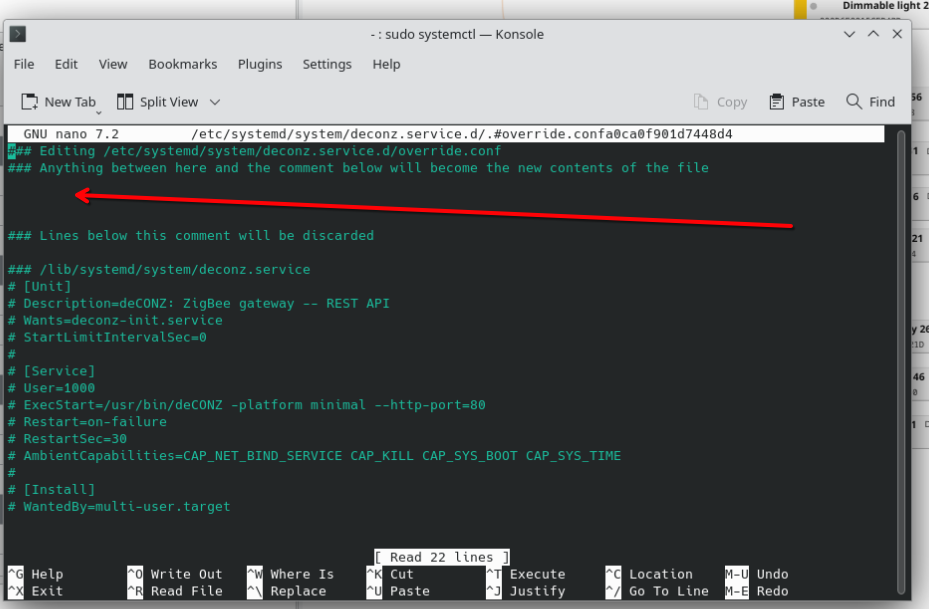
Unfortunately, it’s not really working any better for me with the nginx proxy either. Alexa doesn’t find any of my devices. In the meantime, I’ve completely reset Phoscon and re-paired all devices once, but Alexa still doesn’t work that way.
Said to hear that 
Even more said is to don’t get any idea or support from phoscon
I had the same problem with finding new or previous deleted devices by alexa. Today i have installed the latest stable deconz version 2.31.2. After installation i have restartet my raspberry.
It seems that the WebSocket port is now fixed at port 8080. It can no longer be changed using the --ws-port parameter. nginx is still running on my raspberry on port 443 as a reverse proxy.
Alexa was now finding my missing light device and commands are still working without lags or failures.
Hi @Fuchsi, have you checked if the phoscon webpage on your device ist available per https? A security warning will appear, but if you skip it, the site should work as usual.
I have the same problem with deconz 2.31.2 on Debian 12.12.
I can connect to port 80 and get the phoscon webinterface. Netstat shows deconz is running on port 443 also but the browser gets a timeout. I used “iptables -I INPUT -p tcp --dport 443 -j REJECT” and evoila, Alexa is responding normal… Strange… If someone has a better solution, I’m interested.
Best regards,
toberkel
I think that Alexa checks whether port 443 is open and, if so, attempts to access the deconz API through that port. But since Deconz only offers WebSocket and not https over port 443, Alexa doesn’t receive a response.
The solution could be to change the WebSocket port to another port, such as 8443 or 8080, so that port 443 is no longer accessible. A reverse proxy might not even be necessary.
Yesterday, after reading your posts, I stopped the nginx proxy service and had Alexa search for devices again — unfortunately, it still didn’t find anything. As far as I know, the web service should have been running on port 8443 and nothing on port 443.
I’m getting quite frustrated and disillusioned that this hasn’t been working since August, and there’s absolutely no response from Dresden Elektronik. What’s going on? Do I really need to start looking for an alternative?
You need to run the Web-Port on 80. This is how Alexa discovers devices. Only the WebSocketPort has to be changed and behind the 443 reverseproxy with certificate.
If you run docker, you need to install nginx inside the container. otherwise its not working with discovery and ssl proxy the same time