Group on/off doesn't trigger light in group (single light does; Fingerbot)

Hi,

Short: Group on/off switch in the phoscon app doesn’t work as expected, switching single device on/off in the exact same group works.

Setup: Conbee II, Gateway 2.28.1, Firmware 26780700)
Device: Moes Fingerbot (_TZ3210_j4pdtz9v)

  • Fingerbot successfully added as a light in Phoscon App
  • Added a group + added Fingerbot as the sole “light” in this group
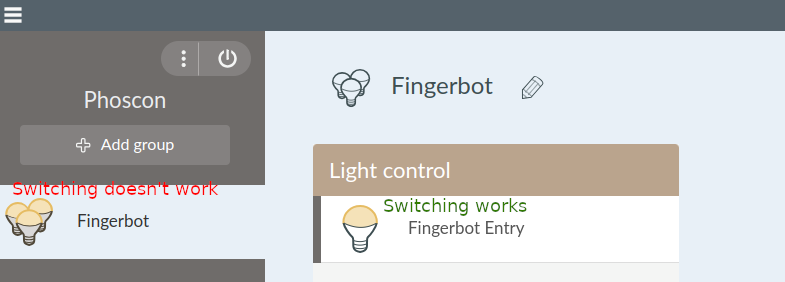
  • Problem: Toggling the group in between On/Off (3-bulb icon) does nothing
  • Toggling the single device via “Lights” (Light control, single bulb icon) triggers the device as expected

For visualisation:
Checking the websocket events in parallel shows identical events for both toggling the group and the single device, but the actual result differs, because only the direct device on/off triggers the expected action.

// 3-bulb icon (group) action *doesn't* trigger the device
    "13:16:44:330": {
        "e": "changed",
        "id": "21",
        "r": "lights",
        "state": {
            "on": false,
            "reachable": true
        },
        "t": "event",
        "uniqueid": "a4:c1:38:b2:0b:f6:a6:9f-01"
    }

// Single bulb icon in group triggers the action (identical entry)
    "13:26:09:423": {
        "e": "changed",
        "id": "21",
        "r": "lights",
        "state": {
            "on": false,
            "reachable": true
        },
        "t": "event",
        "uniqueid": "a4:c1:38:b2:0b:f6:a6:9f-01"
    },

The output above filtered based on the group, unfiltered output has one more relevant entry for the group:

    "13:29:36:945": {
        "e": "changed",
        "id": "20",
        "r": "groups",
        "state": {
            "all_on": false,
            "any_on": false
        },
        "t": "event"
    },

It seems the device is supported fine, just the resulting action triggered by group on/off and single device on/off seem to differ in the background.

Any hints on how to further debug what the group action is doing differently than the single action?

Best regards
xGitter

Not a solution, but somewhat same experience:
One light do not respond to group commands - deCONZ / General Support - deCONZ Community (phoscon.de)
Could perhaps help narrowing down a common issue?

If I m right it’s a tuya device, it use the tuya cluiter and not classic cluster, so it can’t support group features.
The zigbee group feature is a broadcast request on a specific cluster, if your device don’t have it …

The package says “works with Tuya”, so I guess it must be a Tuya device.

Is there any other way to connect the working device with a switch not going through a group? It feels like the solution to this problem is so close. :grimacing:

Depend of your third app, you need to make a “automatisation group” or just a rule if you have only this device and a switch.
But will be not possible using Zigbee group feature.

For anyone still trying to find a solution. Here’s how I finally integrated the Fingerbot in my openHAB installation.

TLDR: I added the fingerbot manually in openhab as on “On / Off Light” and added a Rule with a switch to activate it.

  • Make sure your fingerbot is added as a light in Phoscon first

  • Now in openHAB (in admin mode): Settings > Things > +

  • Select: deconz / Dresden Elektronik deCONZ Binding

  • Scroll down and select matching category, “On/Off Light” worked for Fingerbot

    • Label: Name of the device
    • Bridge: Select your Conbee GW
    • ID of the Sensor: In Phoscon web app
      • Open: Help > API Information
      • Select Filter: “Lights”
      • Search for the name of your fingerbot in the drop down (shows as “On / Off Output”)
      • ID is shown in the top bar above the json output (here 99)
        i.e. //…/api/…/lights/99 :backhand_index_pointing_left:
  • Add a button in openhab in order to use it for the new “Rule”

  • Create a new Rule: Settings > Rules > +

    • Name: Give the rule a name

    • When > Add Trigger

      • When: “a trigger channel fires”
      • Channel: “Select the button”
      • Event: Select on which event to react
    • Then > Add Action

      • Then: “send a command”
      • Item: Select the fingerbot: “Power (_Power)”
      • Command: “ON”

Once you save the rule, you can test it with the > button top right.

This should allow you to use the fingerbot in your system.